


Key settings
| Setting | Value |
|---|---|
| Pricing | CPM, SmartCPM, SmartCPA |
| Minimum CPM | From $0.10 (tier-3 GEOs) to $0.31 (New Zealand) |
| Creative | 300×250, 728×90, 320×50, 160×600; JPG, PNG, GIF ≤150 KB |
| Targeting | GEO, city, device, OS, browser, language, carrier, connection, source ID, frequency, ad size |
Set up a banner ads campaign
- On the Basic step choose Banner Ads and CPM; SmartCPM and SmartCPA are available. Tick the ad sizes the campaign will use.
- Set the daily budget and default CPM; banner floors are the lowest of the CPM formats, so a modest bid still delivers.
- Pick GEOs, device and OS. Match sizes to devices: 320×50 is mobile, 728×90 and 160×600 are desktop, 300×250 runs on both.
- Upload the creatives with Multi-upload; each file becomes an ad and is matched to its size automatically. Files must be 300×250, 728×90, 320×50 or 160×600, JPG, PNG or GIF, 150 KB or less.
- Set the destination URL once for the batch, with your tracking macros, then save.
Settings that matter for this format
- Run every size you have; sizes compete for different slots, and leaving one out leaves inventory unbought.
- Keep an animated GIF under the 150 KB limit by reducing frames rather than quality.
- An optional third-party impression-tracking URL can be added per ad if you count impressions in your own system.
After saving
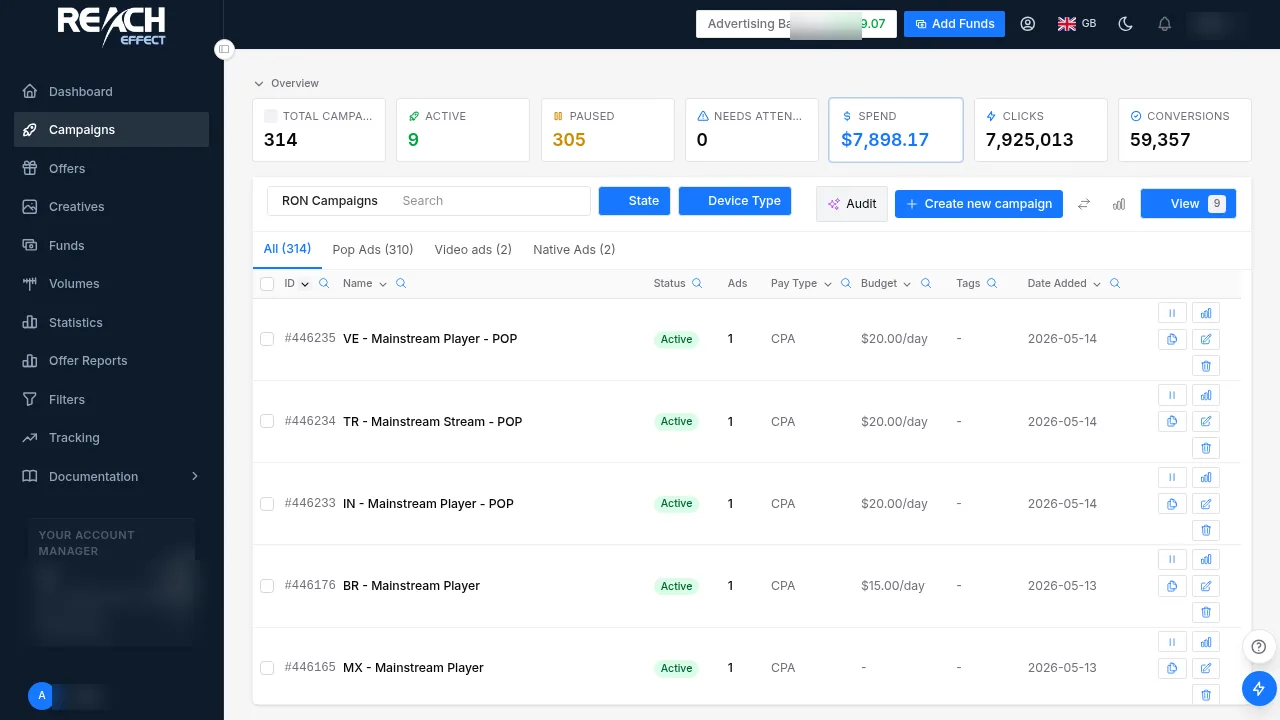
The campaign enters Pending approval and is moderated against the advertising policies, normally within one business day. Track results under Statistics grouped by source ID, and send conversions back with a postback so the Conversions column fills.
Full guide inside your account. Every option on this page, with screenshots of each screen, is documented in the platform under Documentation → Creating a Campaign after you log in.